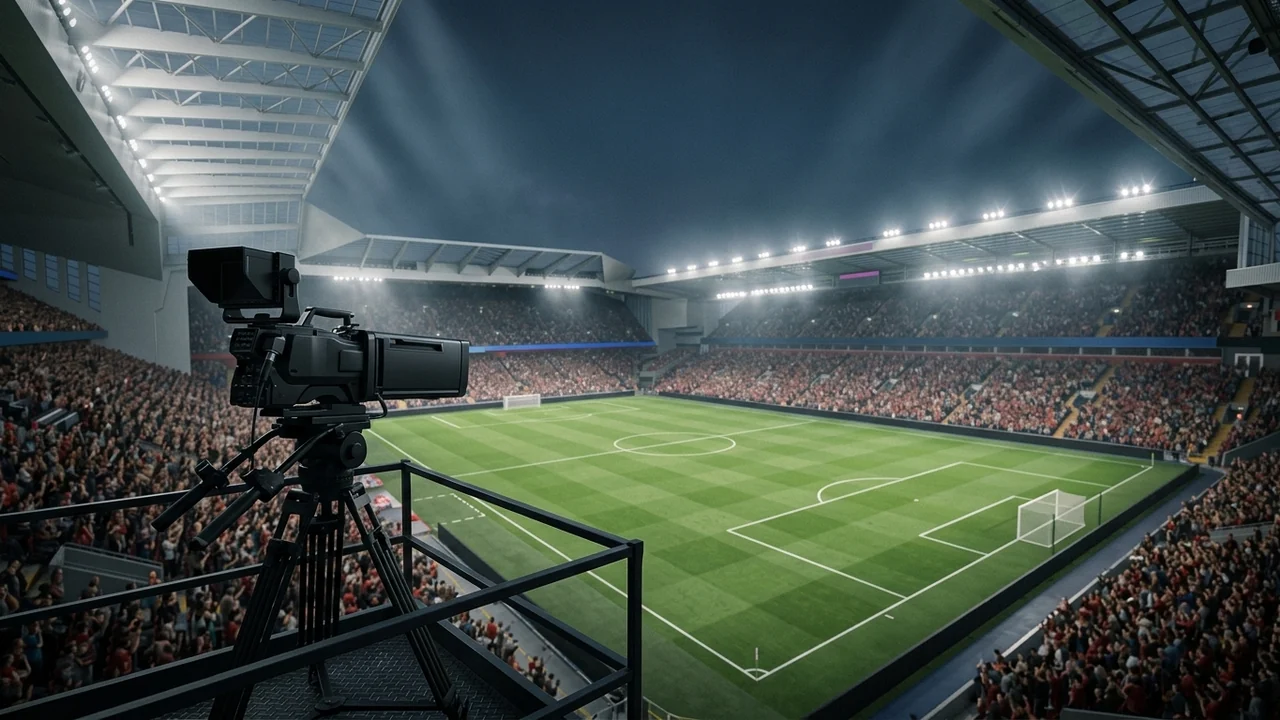
There is no single locked camera preset built for every screen or mode, so start from EA’s default Competitive view on both the Offline 11v11 Camera and Online 11v11 Camera, then tune height, zoom, and visual clarity toggles to match your display. Default inputs pair the Classic controller layout with Advanced Defending on controllers, while PC keyboard players start on the redesigned WASD scheme. For the full overview of pitch mechanics and default menus across modes, read the main gameplay controls and settings guide.
Camera Angles, Visual Toggles, and Accessibility
Each camera preset in EA SPORTS FC 27 changes the available field of view and camera movement style, with separate mode selectors for 11v11, Rush, The Grounds, and goalkeeping.
| Camera setting | Default | Options or range |
|---|---|---|
| Offline 11v11 Camera and Online 11v11 Camera | Competitive | Tele Broadcast, Co-Op, Tactical, EA Sports GameCam,  Tele, Classic, Broadcast, Dynamic, End to End, Pro, and Legacy |
| Player Career 11v11 Camera and Clubs 11v11 Camera | Competitive | Same 11v11 angles plus Competitive Focus and Tactical Focus |
| Rush Camera | Rush Broadcast | Rush Pro, Rush End to End, and Rush Tactical |
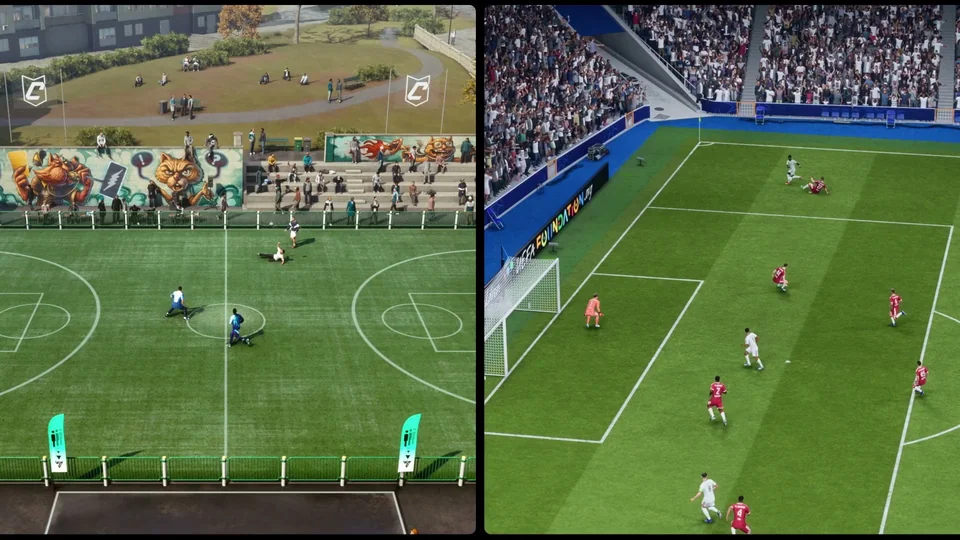
| The Grounds Rush Camera and The Grounds Street Football Camera | The Grounds Pro Camera | Rush Broadcast and Rush Tactical (Rush), or The Grounds Broadcast Camera (Street Football) |
| Be A Keeper Camera | Pro | Tele Broadcast, Co-Op, Tactical, EA Sports GameCam, Tele, Classic, Broadcast, Dynamic, End to End, and Legacy |
| Custom Camera Settings (Height and Zoom) | 10 | 0 to 20 (does not apply to Pro camera view) |
| Pro Camera Zoom, Pro Camera Speed, and Pro Camera Swing | 10 | 0 to 20 (Pro camera view only); Camera Pan Speed sets Slow, Default, or Fast |
| The Grounds My Pro Camera sensitivity | 20 | Horizontal Camera Sensitivity and Vertical Camera Sensitivity run 0 to 100; horizontal and vertical invert toggles default to Off |
Three camera motion toggles default to On and can be turned Off for steadier framing: Power Shot Zoom (dynamic camera movement on Power Shots), Camera Shake Visuals (goal-celebration screen shake), and POV Camera Scenes (first-person sequences during referee bookings, set-piece setups, goals, and goalkeeper saves). On direct corner kicks, selecting your delivery zone shifts the camera automatically toward the box so you have a brief window to reposition attackers, switch players, shield space, or activate Avoidance before the kick arrives, whereas short corners return to your chosen match camera.
In the Settings menu, the new Accessibility Filter trims menus down to key accessibility controls, while Accessibility Icons mark options tied to visual, cognitive, auditory, or mobility needs. When High Contrast Mode (Off by default) is turned on, you gain Pitch Saturation from 0 (default grayscale pitch) to 1, Shader Visual (Cloth Only default or Full Body), and individual color pickers for both teams, both goalkeepers, the ball, and the referee. Set up Pitch Saturation and Stadium Shadows (On by default, alongside Player Shadows) before loading into a match because neither can be edited from the pause menu, and enabling Random match conditions switches stadium shadows back on. Additional on-screen visibility controls include High Contrast Menus (Off by default, replacing translucent panels with opaque tiles), Player Indicator Colors (Default or Custom per team member), PlayStyles + Overhead Indicators (On by default), and Next Player Switch Indicator (On by default).
On PC, Title Update v1.1.0 resolved ultrawide visual glitches when entering matches, borderless-mode resolution, aspect ratio, and frame-rate cap bugs, plus an issue where goalkeeper mouse input stopped responding far outside the penalty box. Title Update v1.2.0 added two PC-only sliders — The Grounds Camera Mouse Sensitivity X and The Grounds Camera Mouse Sensitivity Y — alongside fixes for menu-return camera turn-speed changes in The Grounds and PC directional indicator lag on free kicks and corners.
Controller Layouts, Remapping, and Switching Assists
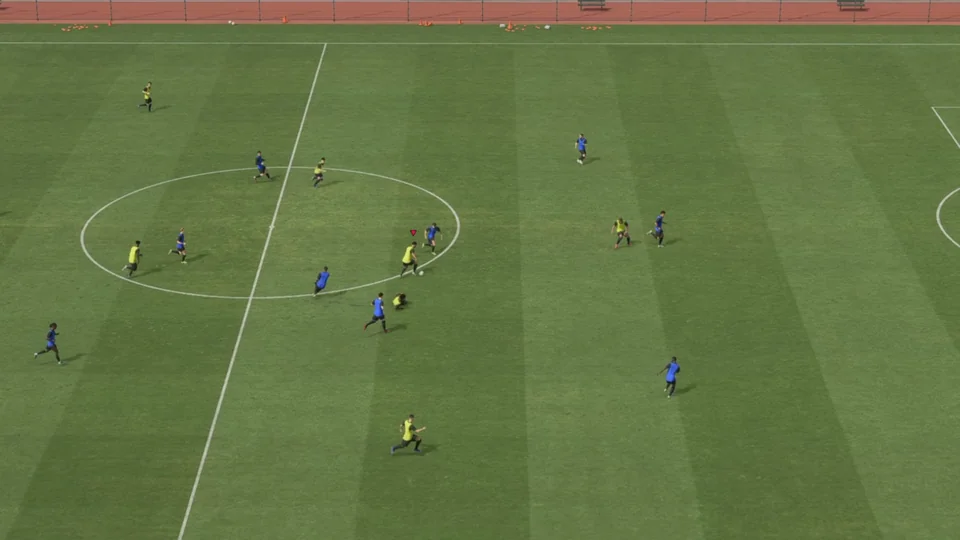
In the Customize Controls menu, controller layouts cover Classic (default) and Alternate, alongside the simplified One Button and Two Button schemes that automate selected actions. Competitive Online matches prohibit both One Button and Two Button schemes, leaving Classic and Alternate for online play.
Gameplay Input Remapping is supported on Classic and Alternate: face buttons can swap with other face buttons, shoulder buttons and triggers can swap with one another, and left-stick movement can swap with D-pad tactics and mentality controls. Menu Navigation Remapping separately lets you toggle between left or right stick and shoulder buttons or triggers for menu browsing. Analog Sprint defaults to Off (adjusting sprint speed from right-trigger force when enabled), while Trigger Effect (PC and PlayStation 5 only, Off by default) applies trigger resistance. User Vibration Feedback on PC and PlayStation 5 provides Enhanced (default, vibrating targeted zones of the controller), Intense, Classic (full-controller rumble), and Off. Title Update v1.2.0 also resolved Bluetooth bugs on PS4 DualShock controllers on PC, multi-controller vibration loss on PC, and missing DualSense controller audio on PS5 after reconnecting.
Simplified Skill Moves starts Off by default; enabling it triggers a contextual skill move automatically whenever you flick the right stick Up, Down, Left, or Right on a controller. For standard right-stick inputs by star rating when playing with simplified dribbling off, check the skill moves list and controls. Player Lock also defaults to Off, letting controller users press both analog sticks to lock onto the selected player regardless of automatic switching. When using Player Lock off the ball, the CPU-controlled carrier no longer dribbles around or avoids defenders automatically — holding their current travel path instead — and passes from that CPU carrier have slightly higher error.
| Assist setting | Default | Options |
|---|---|---|
| Defending | Advanced Defending | Tactical Defending (contextual tackles) or Legacy Defending (unavailable on Competitive preset) |
| Shot Assistance | Assisted | Precision (partial aiming help) or Manual |
| Auto Switching | On Air Balls and Loose Balls | Manual, Automatic, Only on Air Balls, or Only on Loose Balls |
| Right Stick Switching | Classic | Player Rotation or Adaptive; reference defaults to Player Relative (or Ball Relative); sensitivity runs 0 to 10 (default 4) |
| Next Player Switching | Classic | Goal Side or Closest to Ball |
| Reaction Time Calibration | On | Off or On; sensitivity runs 0 to 10 (default 6) |
Competitive vs Authentic Gameplay 2.0 and Key Controls
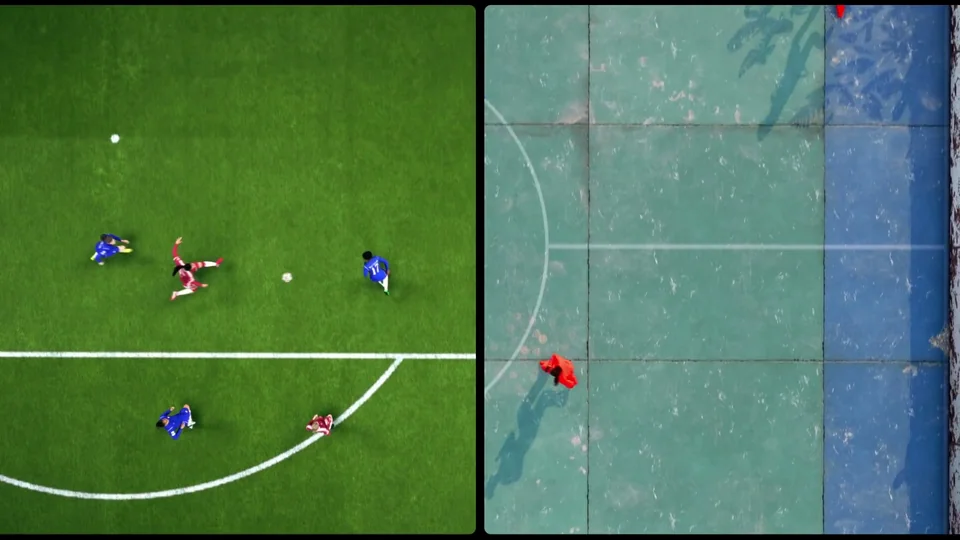
EA’s three Gameplay Type Presets govern assist rules and slider tuning: Competitive brings the mandatory online multiplayer assist setup into offline play, Authentic maintains the starting assist baseline, and Custom unlocks user and CPU sliders for speed, shooting, passing, goalkeeping, defending, ball control, team positioning, and injuries. Authentic Gameplay 2.0 adds 10 new CPU Sliders alongside 25 new Gameplay Sliders, splitting CPU tuning into CPU Opponent and CPU Teammate groups so single-player lock modes like Player Career can adjust allies and opposition separately. Post-launch patches also resolved Custom CPU AI Behavior sliders resetting to 50 on restart, repaired the Team Positioning Marking slider in offline modes, and made the Defending Aggression CPU slider more impactful.
Several core match inputs and defensive rules changed in EA SPORTS FC 27:
- Avoidance on corner kicks (hold
R1/RB): slip through crowded box areas without getting blocked during the pre-delivery window, then pair it with shielding to hold space before contact. - Triggered Curved Runs (tap
L1 + R1/LB + RB): instruct a teammate to bend their run around defenders into open space; manually triggered runs stop after a limited distance unless triggered again within range. - Pass & Follow Runs (
L1 + R1 + X/LB + RB + A): send the passer curving into an overlap or inside lane right after releasing the ball. - Dinked Passes (double-tap Through Pass): Dinked Passes are fully manual and aimed where you point in FC 27; following the September 2026 Closed Beta update, the Ground Pass input can no longer trigger a dink, so double-tapping Ground Pass produces a regular Ground Pass.
- Team Press and manual defending: Team Press has no effect while the ball sits in your defensive third, and in Competitive gameplay AI defenders stop auto-tackling nearby dribblers while manually controlled defenders gain faster jockey speed and longer stand-tackle reach.
Because manual defending and core attributes carry greater weight in FC 27, EA narrowed the gap between base attributes and defensive or speed traits such as  Jockey,
 Intercept, and
 Quick Step — compare every trait in the PlayStyles database. Once your controls feel comfortable, map out formations in the tactics planner or load presets with our guide on importing tactics codes.
PC Keyboard, Mouse Controls, and Switching Input Devices
PC players get two redesigned keyboard layouts — WASD (default, moving with W, A, S, and D) and Arrow Keys (Arrows, moving with the directional arrows) — replacing the removed Classic and Alternate keyboard layouts. Mouse controls stay unchanged and work alongside either WASD or Arrows, though Competitive Online matches prohibit Mouse + Keyboard setups. Keyboard keys can be interchanged with other keyboard keys (with Title Update v1.1.0 resolving a bug that prevented key remapping on Keyboard Only), whereas mouse buttons and cursor movement cannot be remapped; PC mouse users can also toggle Larger Clickable Targets and On-Screen Pause in gameplay options.
During matches on PC, dedicated tactical hotkeys map F1–F4 to Quick Tactics, 1–5 to Dynamic Tactics, F9 to Tactical Focus, and F5–F8 to Tactical Suggestions in open play or Set-Piece Tactics when taking and defending set pieces. Offline and single-player modes including Kickoff and Squad Battles allow swapping between a controller and mouse/keyboard mid-match from the pause menu via Settings > Select Sides. Online multiplayer sessions stay locked to the input device used at startup, except in Division Rivals within Ultimate Team, which loads the last-used device saved to your profile and displays the active choice on the Kit Select screen. For hardware tiers, frame-rate targets, and graphics presets on desktop setups, see the PC system requirements and graphics presets guide.