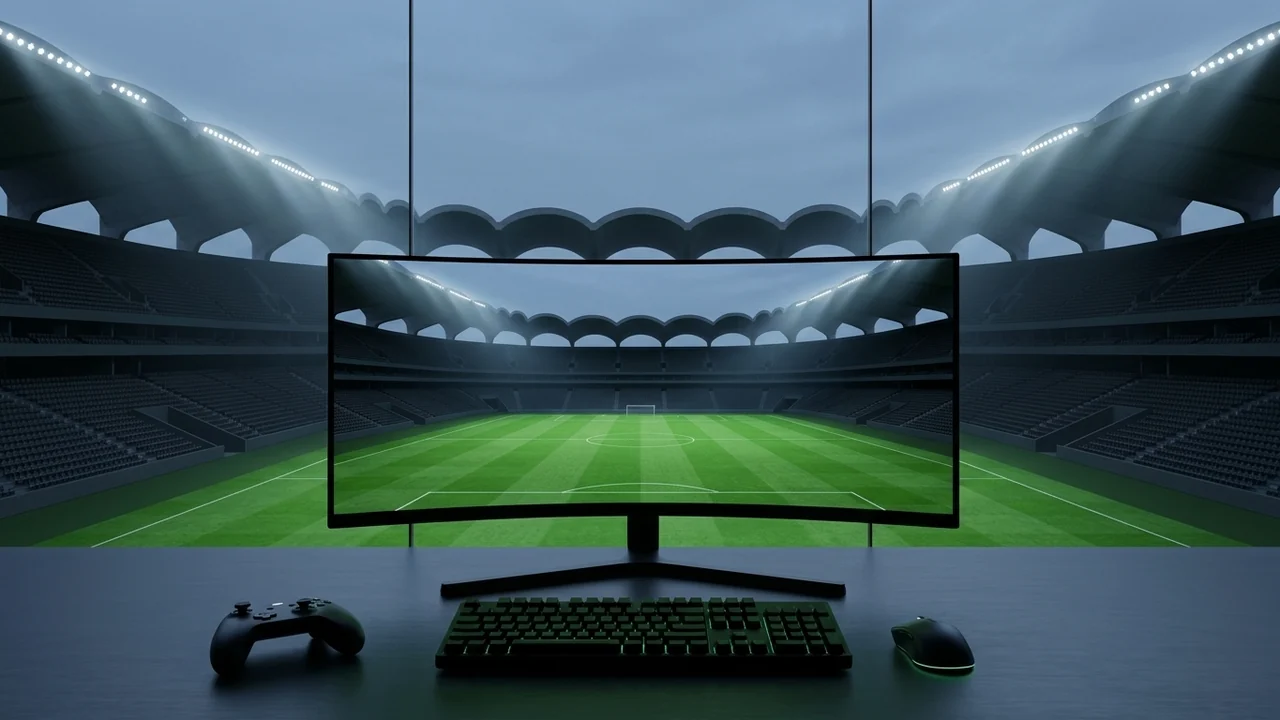
Setting up EA SPORTS FC 27 on Windows PC starts with the PC system requirements, EA Javelin Anticheat, and Secure Boot on Windows 11. On PC, EA expanded graphics presets, added a VRAM indicator, and redesigned keyboard controls, while players also configure EA Connect cross-play, troubleshoot crashes or stuttering, and use PC modding tools such as FC 27 Live Editor (offline only) and FIFA Mod Manager.
Table of contents
- PC system requirements, dual-channel memory, and storage
- Graphics presets, VRAM indicator, and PC features
- EA Javelin Anticheat and Secure Boot requirements
- PC performance, crashes, stuttering, and patch fixes
- Live Editor, FIFA Mod Manager, and offline PC modding
- Cross-play pools, EA Connect, and platform parity
- PC hardware tiers, presets, and setup summary
PC system requirements, dual-channel memory, and storage
EA publishes six PC hardware targets for EA SPORTS FC 27, scaling from 720p Low at 60 FPS gameplay up to 1440p at 120 FPS gameplay or 2160p (4K) at 60 FPS gameplay. Every tier requires DirectX 12, 100 GB of storage, dual-channel RAM, and a broadband internet connection (EA’s system requirements page specifies 512 kbps for Minimum and Recommended); Minimum and Recommended support Windows 10 or Windows 11 (64-Bit, Latest Update), while all four High and Ultra tiers list Windows 11 (64-Bit, Latest Update) only.
- Minimum (720p, Low preset): Windows 10/11 64-Bit (Latest Update), a 6-core/12-thread AMD Ryzen 5 1600 or 4-core/4-thread Intel Core i5-6600k, 8 GB of DDR4 dual-channel RAM (
2x4 GB), an AMD Radeon RX 570 or NVIDIA GeForce GTX 1050 Ti with 4 GB of VRAM, and a 100 GB HDD targeting 60 FPS in gameplay and 30 FPS in cutscenes. - Recommended (1080p, Medium preset): Windows 10/11 64-Bit (Latest Update), an 8-core/16-thread AMD Ryzen 7 2700X or 4-core/8-thread Intel Core i7-6700, 12 GB of dual-channel RAM, an AMD Radeon RX 5600 XT or NVIDIA GeForce GTX 1660 with 6 GB of VRAM, and a 100 GB SSD targeting 60 FPS in gameplay and 30 FPS in cutscenes.
- High tiers (Balanced 1440p High / Performance 1080p Medium): Windows 11 64-Bit (Latest Update), an 8-core/16-thread AMD Ryzen 7 3700X or 8-core/16-thread Intel Core i7-10700, 16 GB of dual-channel RAM, an AMD Radeon RX 6600 XT or NVIDIA GeForce RTX 3060 with 8 GB of VRAM, and a 100 GB SSD. Balanced targets 60 FPS gameplay (30 FPS cutscenes), while Performance targets 80 FPS gameplay (40 FPS cutscenes).
- Ultra tiers (Balanced 2160p Ultra / Performance 1440p High): Windows 11 64-Bit (Latest Update), an 8-core/16-thread AMD Ryzen 7 7800X3D or 16-core/24-thread Intel Core i9-12900k, 32 GB of dual-channel RAM (
2x16 GB), an AMD Radeon RX 7800 XT or NVIDIA GeForce RTX 4070 with 12 GB of VRAM, and a 100 GB SSD. Balanced targets 60 FPS gameplay (30 FPS cutscenes), while Performance targets 120 FPS gameplay (60 FPS cutscenes).
EA calls out dual-channel memory across all tiers because pairing two RAM sticks (2x4 GB at Minimum or 2x16 GB at Ultra) supplies wider memory bandwidth than the same total RAM running in single-channel mode, helping smooth out stutters. An HDD still meets the Minimum floor, yet EA strongly advises installing the 100 GB client on an SSD for the best experience.
On PC, the game sells through the EA app, Steam, and Epic Games. For the Standard Edition and Ultimate Edition on PC (including Steam and Epic), EA’s legal disclaimers note that playing and accessing online features may require an internet connection, an EA account, an applicable platform account, and installing the EA app. Those disclaimers also note that mandatory content updates may download automatically, require extra storage, incur bandwidth fees, or require an extra purchase to access.
The Steam store listing for Windows covers English, French, Italian, German, Spanish - Spain, Spanish - Latin America, Portuguese - Brazil, Portuguese - Portugal, Arabic, Czech, Danish, Dutch, Japanese, Korean, Norwegian, Polish, Russian, Simplified Chinese, Traditional Chinese, Swedish, and Turkish. Across the EA app, Steam, and Epic builds on PC, text and audio commentary outside English and your selected launcher language require a separate download.
For a deeper tier-by-tier hardware breakdown, read the FC 27 PC system requirements and graphics presets guide.
Graphics presets, VRAM indicator, and PC features
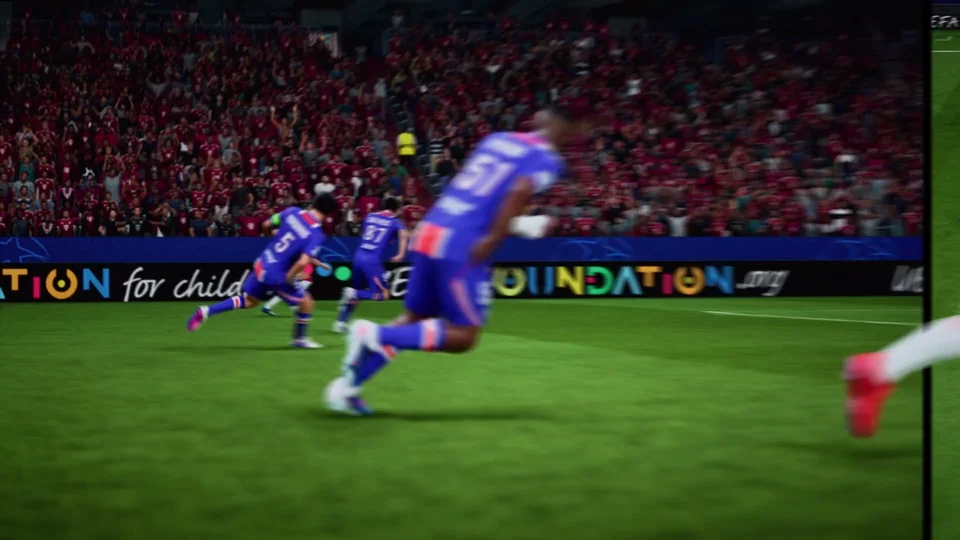
EA expanded the PC graphics menu in EA SPORTS FC 27 with dedicated Performance and Balanced modes alongside High and Ultra specification presets targeting at least 80fps and 120fps on their listed rigs. Every individual graphics setting remains customisable, letting you tune visual quality beyond the baseline presets.
A live VRAM indicator now sits inside the graphics settings menu and estimates peak video memory demand as you adjust individual options. Comparing that estimate against the 4 GB, 6 GB, 8 GB, or 12 GB of VRAM listed per hardware tier helps you pick settings suited to your GPU before entering a match. For high-end rigs that have headroom beyond Ultra, EA also added Enhanced Ultra Visuals; the option starts turned off by default so players chasing high frame rates do not take an unrequested performance hit.
EA reworked the Steam launch sequence to cut down visible startup windows and intermediate loading steps, reporting launch-time cuts of roughly 50% in tested setups (actual gains depend on your PC). On the CPU side, EA shipped targeted PC optimisations aimed at scenarios where heavy CPU load caused sluggish match responsiveness. Steam players also gain automatic Steam Friends integration inside EA Connect, removing the old step of typing a friend’s EA ID manually before adding them as an EA Friend.
Redesigned keyboard layouts, tactical shortcuts, and input switching
PC keyboard controls were rebuilt around two customisable layouts — WASD (default, moving with W, A, S, and D) and Arrows (moving with the arrow keys) — while the legacy Classic and Alternate presets were retired. Both layouts cover attacking, defending, Skill Moves, tactics, and set pieces, and you can pair either layout with unchanged mouse controls even where keyboard and mouse actions overlap.
During a match, keyboard players can trigger tactical shortcuts without leaving their main movement keys:
1–5: switches Dynamic Tactics on the fly.F1–F4: opens Quick Tactics adjustments.F5–F8: triggers Tactical Suggestions during open play, or Set-Piece Tactics when attacking or defending dead balls.F9: activates Tactical Focus.
If both a controller and a mouse and keyboard stay plugged in, input lock rules vary by mode. In Division Rivals inside Ultimate Team, the game follows the last-used input device stored on your profile, which you can check on the Kit Select screen. Across single-player and offline modes such as Kickoff or Squad Battles, you can swap devices mid-match via the pause menu under Settings -> Select Sides; outside Division Rivals, online and multiplayer matches stay locked to whichever input device began your session.
EA Javelin Anticheat and Secure Boot requirements
EA Javelin Anticheat is the PC anti-cheat and anti-tamper tool from EA, requiring at least the Windows 10 20H1 update (version 10.0.19041) or newer. It installs automatically alongside protected titles, and you can check whether your installation includes it from the EA app via Manage -> View Properties -> Browse.
Installing, updating, and repairing EA Javelin Anticheat
Because updating the EA app, game files, or anticheat does not always refresh the other two components automatically, EA advises repairing both the game and the anticheat service when update prompts appear:
- Update or repair your game installation first: in the EA app open Library ->
...-> Update (or Repair), or in Steam open Library -> Properties -> Installed Files and run the file integrity check. - Open File Explorer, navigate to
C:\Program Files\EA\AC(or grab the standalone EA Javelin anticheat installer), right-clickEAAntiCheat.Installer.exe, and choose Run as administrator. - Pick your game from the dropdown menu and click Update; if Update is unavailable, choose Repair, or select Uninstall followed by Install.
- Wait for the
Update success!orInstall success!message, restart your PC, and launch the game again. If you leave EA Javelin uninstalled, protected titles will not start.
Common EA Javelin error codes and software conflicts
Most anticheat launch blocks trace back to damaged files, outdated Windows Insider certificates, denylisted drivers, or blocked background services:
- Error #41 (Windows 11 Insider Preview): Your Insider build lacks a renewed Windows Insider certificate; install the latest Windows Insider Preview update through Settings -> Windows Update and restart your PC.
- Error #115 (launch or service initialization failure): Close the game and exit the EA app (plus Steam or Epic Games Store), run the EA app as administrator, run
EAAntiCheat.Installer.exeas administrator to Uninstall and Install for the game, restart your PC, and launch from the EA app. - Error #136 (startup blocked by background tools): Close overlays, hardware monitors, and peripheral utilities, update Windows and system drivers, repair anticheat and game files, and run a clean boot if the block persists.
- Error #1053 (service timeout): Reinstall via
EAAntiCheat.Installer.exeas administrator and check that antivirus or firewall rules are not blocking eitherEAAntiCheat.GameServiceLauncher.exeor theEAAntiCheat.GameService.exebackground service. - Errors #105, #111, and #603 (install or validation failures): Restart your PC to release locked anticheat processes, run your launcher as administrator, reinstall the anticheat, repair game files, and temporarily turn off overlays or VPN apps.
- Error #701 (Windows file system transaction log): Use the
Windows + Rshortcut, typecmd, pressCtrl + Shift + Enterfor an elevated prompt, runfsutil resource setautoreset true C:\(replacingC:\with your Windows drive if different), restart, and re-run the installer. - Error #119 and Error #95 (denylisted drivers or blocked utilities): Outdated monitoring, RGB, or fan-control drivers (including older builds of ASUS Aura Sync, GIGABYTE RGB Fusion, HWiNFO, CPU-Z, MSI Command Center, Razer Synapse, or ASUS Armoury Crate on ROG Ally handhelds) and certain VPN or proxy tools trigger startup blocks; update hardware utilities or disable them. Software from DiscSoftLTD (Daemon Tools) and reWASD is not permitted to run alongside a Javelin-protected game and must be uninstalled (including virtual Daemon Tools or
DiscSoftentries in Windows Device Manager); EA lists PowerToys (Keyboard Manager) from Microsoft, Steam Input, KeyMapper, Kanata, and KMonad as approved alternatives. - CPU microcode warnings: If Javelin flags outdated CPU microcode or your PC crashes from CPU instability, update your CPU microcode or motherboard BIOS and set BIOS power limits to the manufacturer’s recommended baseline profile.
Secure Boot, UEFI, GPT, and TPM 2.0 setup
On Windows 11, EA SPORTS FC 27 and other EA Javelin Anticheat titles require Secure Boot so unauthorized software cannot load before Windows starts. Secure Boot requires three prerequisites: TPM 2.0 enabled, a Windows system drive formatted as GUID Partition Table (GPT) rather than Master Boot Record (MBR), and firmware BIOS Mode set to UEFI. Systems limited to Legacy BIOS cannot turn on Secure Boot and need UEFI-capable hardware.
- Open the Run dialog with
Windows + R, typemsinfo32, open System Summary, and check that BIOS Mode says UEFI and Secure Boot State says On. - To check TPM readiness, open the Run dialog with
Windows + R, runtpm.msc, and look for the Status box reporting that TPM is ready to use. - Check disk partition style via
Windows + X-> Disk Management, right-clicking your Windows disk (OSDisk(C:), usually Disk 0), and checking Partition style under Properties -> Volumes. If it shows MBR, back up important files first, open an administrator prompt, and runmbr2gpt /validate /allowFullOSfollowed bymbr2gpt /convert /allowFullOS(adding/disk:0to match your disk number if needed), then switch Boot Mode from Legacy BIOS to UEFI. - After enabling TPM 2.0, GPT, and UEFI, search Windows for Change Advanced Startup Options, click Restart now next to Advanced startup, and follow Advanced options -> UEFI Firmware Settings -> Boot tab. Switch the Secure Boot state to Enabled, set OS Type to UEFI mode, and choose Save Changes & Reset.
- If Windows reports Secure Boot as enabled yet inactive, or shows a User Mode error, restore default Secure Boot factory keys under Key Management in BIOS and switch Secure Boot Mode from Custom to Standard before saving.
PC performance, crashes, stuttering, and patch fixes
Performance issues on your local PC look different from network lag. EA notes that local hardware or configuration issues cause delayed inputs even offline or at low latency, slow-motion gameplay even when average FPS looks healthy, or recurring stuttering and frametime spikes. High ping, packet loss, jitter, and online disconnects point instead to network routing, where the EA Connection Quality Report and connection steps apply.
Step-by-step performance and crash checklist
Work through these ordered checks from EA Help and test a match after each change:
- Drop your target frame rate (for example, test 30 FPS instead of 60 FPS) or cap FPS and enable Vertical Sync (V-Sync) in-game or through your GPU control panel to match your monitor’s refresh rate.
- Step down demanding graphics quality sliders and display resolution, watching the in-game VRAM indicator.
- Close background software competing for CPU, GPU, or RAM — especially web browsers, overlays, screen recorders, and extra launchers.
- Check in BIOS/UEFI or a hardware utility that your RAM runs in dual-channel mode and that multiple sticks occupy the motherboard’s recommended slots.
- Update your GPU drivers and check Windows power mode, laptop performance mode, and GPU control panel power profiles.
- If crashes or freezes continue, perform a Windows clean boot to isolate conflicting background tasks, repair the installation via EA app (Library -> Manage -> Repair), or reinstall both the game and the EA app.
PC fixes shipped in Title Updates v1.1.0, v1.2.0, and v1.3.0
Make sure your PC client is patched to the latest build, because EA’s first three Title Update releases resolved several PC-specific display, stuttering, and input bugs:
- Title Update v1.1.0 (released October 27, 2026): Fixed visual defects when loading matches on ultrawide displays, fixed borderless mode blocking resolution or aspect-ratio changes and dropping frame-rate limits when switching active monitors, added the missing refresh-rate revert timer, fixed windowed-mode edge resizing failing to update Screen Resolution and Estimated VRAM, and fixed graphics settings that previously forced a restart. It also resolved incorrect controller detection, Keyboard Only rebinding failures, Emote Wheel edit errors, mouse inactivity disconnects in The Grounds, unresponsive mouse clicks in Ultimate Team menus, and goalkeeper mouse lockouts outside the penalty box.
- Title Update v1.2.0 (released November 10, 2026): Addressed a PC-only bug where high-end PCs hit repeated FPS drops, stuttering, or freezing in matches. The same patch added X and Y Camera Mouse Sensitivity sliders for The Grounds, fixed PS4 DualShock controllers over Bluetooth, stopped multi-controller setups from losing vibration, fixed free-kick and corner aiming indicator delays, fixed cursor-offset clicks in The Grounds menus, fixed Manager Career negotiation clicks resetting offers, and optimized loading across The Grounds.
- Title Update v1.3.0 (released November 26, 2026): Resolved a PC windowed-mode bug where the game failed to save or relaunch at previously resized custom dimensions, and fixed analog keyboards (with Steam Input off) switching menu button prompts to controller icons whenever the active window changed. The update also shipped general stability fixes alongside PC, PlayStation 5, and Xbox Series X|S agility tuning for taller players’ left-stick dribbling, first-touch trapping, and skill moves.
For error-by-error fixes and display tweaks, follow the FC 27 PC crash, stutter, and anticheat troubleshooting guide.
Live Editor, FIFA Mod Manager, and offline PC modding
PC players who want to customize Career Mode databases, faces, kits, or clubs use two main community tools: FC 27 Live Editor (by xAranaktu) and FIFA Editing Toolsuite (the Editor and FIFA Mod Manager).
Offline-only rules, ban risk, and launcher notes
EA SPORTS FC 27 runs under EA Anticheat, so using memory-injection or modding tools can flag your account and lead to a future EA ban; you use these tools at your own risk. FC 27 Live Editor is designed for offline use only and deliberately does not work in online modes. Trial versions of the game are unsupported, and because any EA patch can break compatibility without notice, the author recommends disabling automatic game updates while playing a modded save and prefers the EA app version over Steam (since Steam still launches through the EA app and introduces an extra protection layer that can disrupt injection).
FC 27 Live Editor capabilities and Compdata Limits
FC 27 Live Editor injects a C++ DLL into the running game process to modify memory in real time. Its launcher automatically copies a fake EAAntiCheat.GameServiceLauncher.exe into the install folder to boot offline without the real anticheat, then restores the original executable when you close the Live Editor launcher.
To set up the tool cleanly: create a dedicated folder on your desktop (such as FC 27 Live Editor), exclude that folder in Windows Security or your antivirus, download the archive solely from the developer’s Patreon page, extract the zip before running it, log in via Patreon if early access requires it, click Run Game, wait for the bottom-left notification before the main menu, and press F9 to toggle the overlay.
Once loaded, Live Editor provides a Players Editor (scouting, attributes, appearance, accessories, PlayStyles, Create Player, Bulk Edit, miniface import or generation, and transfers), a Teams Editor (league standings, transfer budgets, formations, starting XIs, job offers from any club or national team, transfer bans, and match-fixing upcoming games), a Managers Editor (unsackable career status, manager transfers, minifaces), a Transfer History undo tool, a Database Editor, a LUA API, Speedhack, legacy file overrides, youth scout report generation, and crowd removal.
For mod creators adding extra leagues or competitions, Live Editor also overrides hardcoded executable caps via LIVE_EDITOR_LIMITS.json placed in the legacy compdata path (dlc\dlc_FootballCompEng\dlc\FootballCompEng\data\compdata in FIFA Editor Tool or the mods\legacy\... folder inside Live Editor). The default FC 27 limits include 64 active teams (MAX_FCEDATA_ACTIVETEAMS), 500 competition teams (MAX_FCEDATA_COMPTEAMS), 6,000 standings rows (MAX_FCEDATA_STANDINGS), 670 objectives (MAX_FCEDATA_OBJECTIVES), 100 stadiums (MAX_FCEDATA_STADIUM), and 28,000 statistics entries (MAX_FCEDATA_STATISTICS). Live Editor must stay active for custom limits to apply; loading shows up in the Live Editor log as Load LIVE_EDITOR_LIMITS.json.
FIFA Editing Toolsuite and Serie A club licensing
FIFA Editing Toolsuite (v2.2.2) bundles two separate Windows apps: the Editor (for authoring mods across textures, meshes, kits, faces, goal net patterns, databases, and audio) and FIFA Mod Manager (for importing, combining, and launching exported mods in a few clicks). Version v2.2.2 fixed intermittent launch failures when starting with Live Editor on slower starts and improved standalone modding (without Live Editor) for FC 27 build 1.1.0.
In  Italy Serie A, EA announced on September 2, 2026 that
 Lazio (77 OVR, 4-3-3) returned as a licensed club, bringing the Serie A Enilive licensed roster to 17 clubs. The Italy Serie A club roster also lists
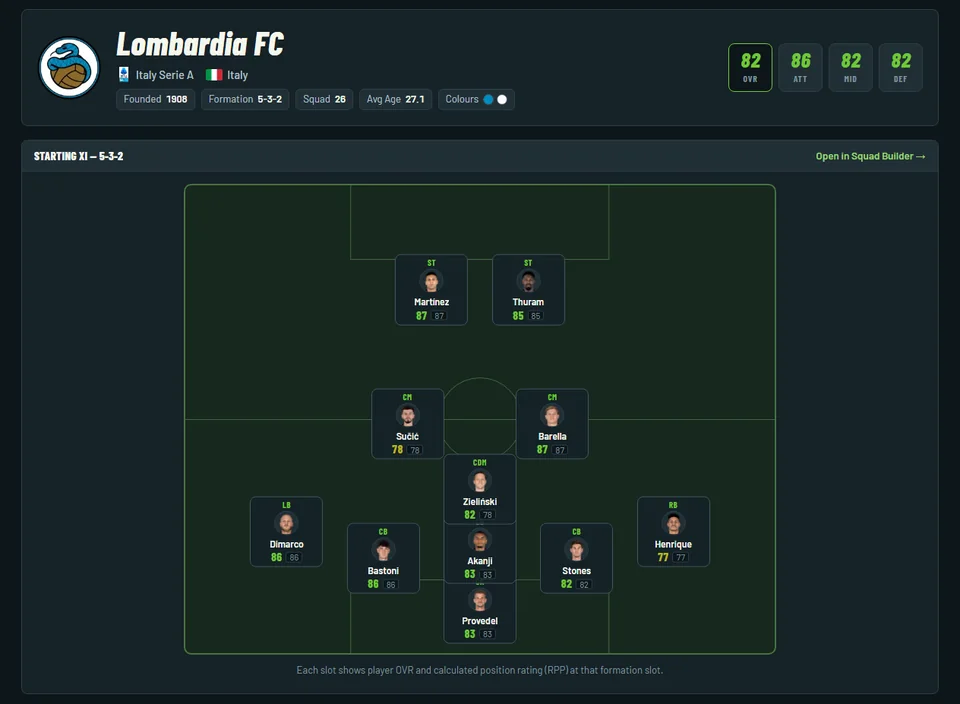
 Lombardia FC (82 OVR, 5-3-2),
 Milano FC (81 OVR, 3-4-2-1), and
 Bergamo Calcio (79 OVR, 4-3-2-1).
Browse clubs, leagues, stadiums, and players in our database, or plan rosters with the wonderkid finder and squad builder. For exact folder paths, antivirus steps, and dual-launch order, see the FC 27 Live Editor and FIFA Mod Manager installation guide.
Cross-play pools, EA Connect, and platform parity
Cross-play in EA SPORTS FC 27 covers PC, PlayStation, and Xbox, split strictly by hardware generation. PC players match inside the current-generation pool alongside PlayStation 5 and Xbox Series X|S, whereas PlayStation 4 and Xbox One share a separate old-generation pool.
Nintendo Switch and Nintendo Switch 2 do not support cross-play for FC; EA’s general EA SPORTS FC help page for Nintendo Switch states that Switch players match only with other Switch players and notes GameShare on Nintendo Switch 2 for local proximity or online Kick-Off matches with Nintendo friends without a second copy. Feature parity also follows the current-gen split: The Grounds (including Clubs) ships on PC, PlayStation 5, Xbox Series X|S, and Nintendo Switch 2, leaving PlayStation 4, Xbox One, and the original Nintendo Switch without it.
In FC 27, Dual Entitlement upgrades PlayStation 4 copies to PlayStation 5 and Xbox One copies to Xbox Series X|S at no extra cost, and Ultimate Team cross-progression transfers only within the same platform family (PlayStation 4 and PlayStation 5, or Xbox One and Xbox Series X|S; EA’s general EA SPORTS FC help page for Nintendo Switch separately lists Ultimate Team cross-progression between Nintendo Switch and Nintendo Switch 2). Because cross-progression only works within the same platform family, PC accounts do not carry progress to or from PlayStation, Xbox, or Nintendo consoles.
Toggling cross-play in EA Connect
Cross-play is switched on by default the first time you launch the game. To turn it off or back on from PC:
- From the Main Menu, open EA Connect.
- Open Social settings.
- Select Cross-play, then Cross-play settings.
- Under Cross-play Enabled, switch the option to No to turn it off (or Yes to re-enable it).
You can reach the same toggle through Main Menu -> Customise -> Online Settings -> Matchmaking Options, or inside Ultimate Team via Main Menu -> Ultimate Team -> Settings -> Matchmaking Settings. Cross-play cannot be toggled mid-match, and EA Connect will block lobby joins if either player disabled cross-play or the selected mode does not support it.
Read the full breakdown of console generations and Switch 2 rules in the FC 27 cross-play and Switch 2 platform guide.
PC hardware tiers, presets, and setup summary
PC hardware tiers and graphics presets
| Tier | Expected FPS | Resolution and preset | GPU and VRAM | CPU | Memory and storage |
|---|---|---|---|---|---|
| Minimum | 60 FPS gameplay / 30 FPS cutscenes | 720p, Low | NVIDIA GeForce GTX 1050 Ti / AMD Radeon RX 570 (4 GB) | Intel Core i5-6600k / AMD Ryzen 5 1600 | 8 GB RAM (DDR4 dual channel), 100 GB HDD |
| Recommended | 60 FPS gameplay / 30 FPS cutscenes | 1080p, Medium | NVIDIA GeForce GTX 1660 / AMD Radeon RX 5600 XT (6 GB) | Intel Core i7-6700 / AMD Ryzen 7 2700X | 12 GB dual channel, 100 GB SSD |
| High – Balanced | 60 FPS gameplay / 30 FPS cutscenes | 1440p, High | NVIDIA GeForce RTX 3060 / AMD Radeon RX 6600 XT (8 GB) | Intel Core i7-10700 / AMD Ryzen 7 3700X | 16 GB dual channel, 100 GB SSD |
| High – Performance | 80 FPS gameplay / 40 FPS cutscenes | 1080p, Medium | NVIDIA GeForce RTX 3060 / AMD Radeon RX 6600 XT (8 GB) | Intel Core i7-10700 / AMD Ryzen 7 3700X | 16 GB dual channel, 100 GB SSD |
| Ultra – Balanced | 60 FPS gameplay / 30 FPS cutscenes | 2160p (4K), Ultra | NVIDIA GeForce RTX 4070 / AMD Radeon RX 7800 XT (12 GB) | Intel Core i9-12900k / AMD Ryzen 7 7800X3D | 32 GB dual channel, 100 GB SSD |
| Ultra – Performance | 120 FPS gameplay / 60 FPS cutscenes | 1440p, High | NVIDIA GeForce RTX 4070 / AMD Radeon RX 7800 XT (12 GB) | Intel Core i9-12900k / AMD Ryzen 7 7800X3D | 32 GB dual channel, 100 GB SSD |
PC setup and troubleshooting checklist
| Area | Key requirement or action | Where to check or configure |
|---|---|---|
| Storage and memory | Install on a 100 GB SSD with dual-channel RAM (2x4 GB min / 2x16 GB for Ultra) |
BIOS/UEFI or motherboard manual |
| Graphics and VRAM | Keep peak load under your card’s VRAM cap; leave Enhanced Ultra Visuals off for higher FPS | In-game graphics settings menu and VRAM indicator |
| Secure Boot and TPM | Make sure BIOS Mode is UEFI, disk is GPT, TPM 2.0 is ready, and Secure Boot State is On | msinfo32, tpm.msc, Disk Management, UEFI Firmware Settings |
| EA Javelin Anticheat | Start the EAAntiCheat.Installer.exe tool as admin to Update, Repair, or Uninstall and Install |
C:\Program Files\EA\AC and EA app Repair |
| Crashes and stuttering | Limit your FPS or enable V-Sync, close overlays, update GPU drivers, apply Title Update patches | In-game settings, GPU control panel, Windows clean boot |
| Live Editor safety | Stay offline only, exclude tool folder in antivirus, disable auto updates, skip trials | Your desktop FC 27 Live Editor folder and Windows Security exclusions |
| Cross-play pool | Toggle cross-play for PC and current-generation consoles between matches | Main Menu -> EA Connect -> Social settings -> Cross-play |